
BotFather Commands: What Each One Does
· 4 min read · 18+ readers

BotFather is the official  Telegram account that creates and manages bots. You talk to it in a normal chat. This page explains the commands people use most, what each does and which ones are risky. BotFather changes over time: some commands have moved into a button menu opened by
/mybots, and new ones appear. If a command below is missing, open /help in BotFather and use the menu, which is always the current source of truth. Nothing here needs coding.
Before you start
Search for @BotFather and check the blue verification tick. Lookalike accounts exist and some try to steal tokens. Only ever type your commands to the verified account.
Creating and listing bots
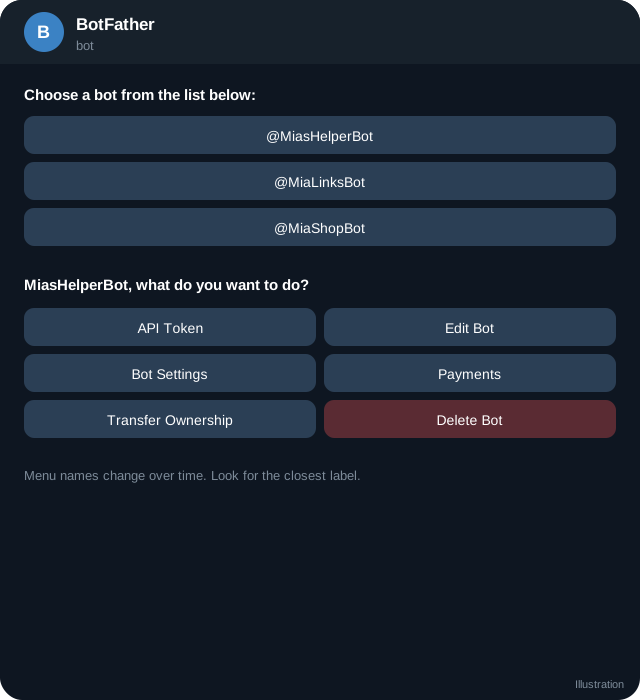
/newbotstarts the creation flow. You choose a display name, then a username that ends inbot. BotFather replies with an HTTP API token. See how to create a bot step by step./mybotslists your bots. Choose one to open its settings as buttons: API Token, Edit Bot, Bot Settings, Payments, Transfer Ownership, Delete Bot./tokenshows the token of a bot you own./revokegenerates a new token and kills the old one. Use it at once if a token leaks. See keeping your token safe./deletebotpermanently deletes a bot. It cannot be undone.
Editing the profile
/setnamechanges the display name./setdescriptionsets the text shown on an empty chat with the bot./setabouttextsets the short "About" text on the bot's profile./setuserpicsets the profile photo./setdescriptionpicsets a picture shown with the description./setcommandssets the list of commands shown in the menu. Each line iscommand - description./deletecommandsremoves the list.
Details are in setting description, commands and photo.
Behaviour and privacy
/setprivacytoggles group privacy mode. With it on, a bot in a group sees only commands, replies to its own messages and mentions. See privacy mode and group admin./setjoingroupsallows or forbids adding the bot to groups./setinlineturns on inline mode and sets the placeholder text. See inline bots./setinlinefeedbackcontrols how often the bot receives feedback about chosen inline results./setdomainsets the domain allowed for the Login Widget. See Login Widget.
Mini Apps and menu button
/newappcreates a Mini App for the bot and gives it a direct link name./myapps,/editappand/deleteappmanage those apps./setmenubuttonsets what the button next to the message box opens. Today the Bot Settings menu also offers a Menu Button option and a Configure Mini App option.
See create a Mini App and register it.
Payments, business and admin rights
- Payments (in the bot's settings menu) connects payment providers. Telegram Stars need no provider token. See Stars payments in a bot.
- Business Mode (in Bot Settings) lets the bot work through Telegram Business. See connecting a bot to Telegram Business.
- Group and channel admin rights presets decide which rights are suggested when someone adds the bot as an admin.
Menu names move around. Look for the closest label.
Commands to treat with care
/revoke,/tokenand/deletebotaffect access and cannot be undone.- Transfer Ownership hands your bot to someone else. Do it only to a person you trust, after agreeing terms in writing.
- Never paste a token into any chat except to BotFather, and never share a screenshot that shows it.
Quick reference
| Goal | Command or menu |
|---|---|
| Make a bot | /newbot |
| Get or reset token | /token, /revoke |
| Change look | /setname, /setuserpic |
| Texts | /setdescription, /setabouttext |
| Menu | /setcommands |
| Groups | /setprivacy, /setjoingroups |
| Inline | /setinline |
| Mini App | /newapp, /setmenubutton |
Quick checklist
- Only the verified BotFather is used.
- Bots created with /newbot and tokens stored safely.
- Profile set with /setname, /setdescription, /setabouttext and /setuserpic.
- Commands set with /setcommands.
- Privacy and group settings reviewed.
- Mini App or menu button configured if needed.
- /revoke practised and known by the team.
- Ownership transfers handled with care.
Keep a record
Write down for each bot its purpose, owner, token location and settings. When you have several bots this saves time, and when someone leaves the team you will know exactly which tokens to rotate.
Frequently asked questions
Can I run BotFather commands from code?
No. BotFather is an interactive chat. The Bot API has methods that cover some of the same settings, for example setting commands, but creating bots and revoking tokens happen in BotFather.
Why can I not find a command?
BotFather moves features into menus and sometimes retires commands. Use /mybots and look under Bot Settings.
Does BotFather cost money?
No. Creating bots is free.
What if someone else got my token?
Send /revoke, choose the bot and update your app with the new token.
Related guides
Create a Telegram Bot Step by Step (With a Working Reply)
From zero to a bot that answers /start: make it in BotFather, test the token with getMe, send your first message and choose polling or a webhook.
Set Your Bot's Description, About Text, Commands and Photo
Make a bot look trustworthy: description, short description, about text, command menu, profile picture and language variants, in BotFather and through the Bot API.

Keep Your Telegram Bot Token Safe (and What to Do if It Leaks)
A bot token is a password. Learn where tokens leak, how to store them, how to rotate with /revoke, how to detect misuse and a leak response checklist.
Bot Privacy Mode and Group Admin Rights Explained
What a bot can see in groups: privacy mode on and off, admin rights, allowed_updates, mentions and commands, and how to test and change them safely.
Create a Telegram Mini App and Register It in BotFather
Build a minimal Telegram Mini App page, include the Telegram Web App script, host it on HTTPS and register it in BotFather with a menu button or /newapp.
A Telegram Webhook on AWS Lambda or a Small Server
Two ways to receive Telegram updates: an AWS Lambda function URL and a tiny Node server behind HTTPS, with secret token checks, fast replies and queues.
More in Build on Telegram
- Add a Bot as Channel Admin and Post to Your Channel
- Common Telegram Bot Errors and How to Fix Them
- Connect a Bot to Your Telegram Business Account (Chatbot Mode)
- Connect Your Backend to a Telegram Bot: A Practical Architecture
All topics: Build on Telegram · Guide index · Explore Telegram · About TSocial