
Connect a Bot to Your Telegram Business Account (Chatbot Mode)
· 4 min read · 18+ readers

 Telegram Business lets a bot answer messages in a person's private chats on their behalf. For a developer this adds a few update types and a parameter on send methods. For the account owner it adds a settings screen. This page covers both sides. Check core.telegram.org/bots/api and the Business section of Telegram's documentation for current details, because the feature set has grown over time.
The two sides
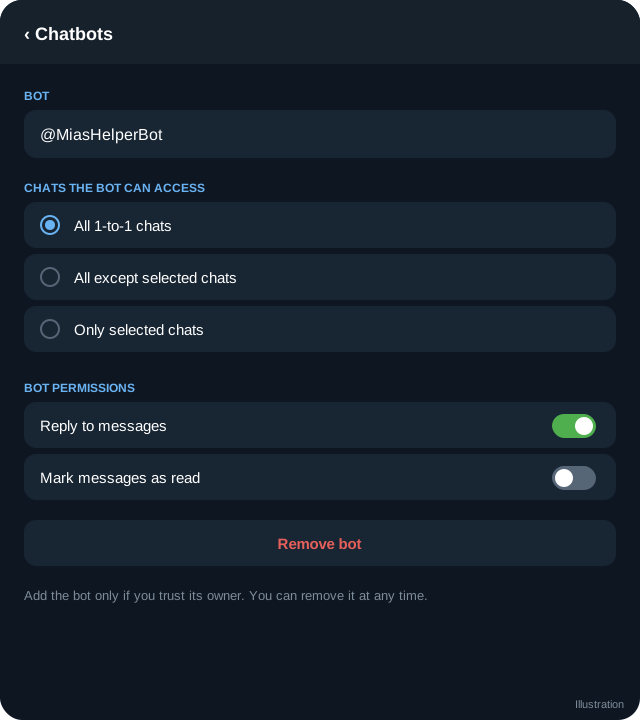
Account owner side. A user with Telegram Business access opens Settings, then Telegram Business, then Chatbots, and enters the bot's username. They choose which chats the bot can handle and which it cannot, and whether it may reply to messages. They can remove the bot at any time. See the non-technical walkthrough.
Bot side. The bot must have Business Mode turned on in BotFather (Bot Settings, then Business Mode). Without it, Telegram will not offer the bot in the chatbot list.
Updates you will receive
When business mode is on, your bot can receive these update fields (list them in allowed_updates if you set it):
business_connection: a user connected, changed or disconnected the bot. It carries anid(the connection id), theuser,date, rights andis_enabled.business_message: a new message in a chat the bot handles.edited_business_message: a message was edited.deleted_business_messages: messages were deleted.
Keep a table of connections so that you know which business_connection_id belongs to which account.
{
  "update_id": 100,
  "business_message": {
    "message_id": 55,
    "business_connection_id": "abc123",
    "chat": { "id": 777, "type": "private", "first_name": "Sam" },
    "from": { "id": 777, "first_name": "Sam" },
    "text": "Hi, are you around?"
  }
}
Replying
To send a message as the account owner, use the normal send methods with the extra parameter business_connection_id:
{ "business_connection_id": "abc123", "chat_id": 777, "text": "Thanks for writing. I will reply soon." }Most send and edit methods accept that parameter. The message appears in the chat as sent by the account owner. Check the documentation for which methods support it.
What the bot can and cannot see
- It sees messages in the chats the owner allowed, not the whole account.
- It sees only what Telegram delivers in business updates. Do not assume access to older history.
- It does not see secret chats, groups or channels through this feature.
- Rights granted by the owner limit what it can do. Respect them and handle failures when a right is missing.
- The owner can stop it in one tap. Handle
is_enabled: falseby stopping all sends for that connection.
Good practice for developers
- Be transparent. Tell the account owner exactly what the bot does, and what data you store.
- Minimise data. Store only what you need and delete it when the connection ends.
- Escalate to humans. Provide a way to flag a chat for the owner, and stop answering that chat.
- Throttle. Avoid replying instantly with long texts. Respect rate limits. See rate limits.
- Ignore your own messages so the bot does not reply to itself. Check the sender id.
- Log connection changes and alert when a connection is removed unexpectedly.
- Disclose AI. If a language model writes replies, say so in the owner's bio or welcome message. See AI clone safety.
A minimal handler
async function handle(update) {
  if (update.business_connection) return saveConnection(update.business_connection);
  const m = update.business_message;
  if (!m || !m.text) return;
  if (m.from.id === ownerIdFor(m.business_connection_id)) return;   // do not answer the owner
  await api("sendMessage", {
    business_connection_id: m.business_connection_id,
    chat_id: m.chat.id,
    text: "Thanks for your message. I will get back to you soon.",
  });
}
saveConnection and ownerIdFor are your own functions.
Testing
Use a test account with Business access, connect your development bot, and message the account from a second account. Remove the bot when finished. Unknown behaviours can differ between app versions, so test on iOS, Android and desktop.
Quick checklist
- Business Mode enabled for the bot in BotFather.
- The owner added the bot under Settings, Telegram Business, Chatbots.
- business_connection updates stored with their ids.
- Replies use business_connection_id and the right chat_id.
- The bot ignores the owner's own messages.
- is_enabled false stops all sends for that connection.
- Data kept to a minimum and deleted when disconnected.
- Any AI use is disclosed to the owner and the audience.
Review with the owner
Schedule a short weekly review with the account owner for the first month. Read a sample of conversations together, note any mistakes and update rules. Owners should feel in control, and they should know how to pause the bot instantly.
Frequently asked questions
Does the account owner need Premium?
At the time of writing Business features are offered with Telegram Premium. Check the current rules.
Can the bot read groups through Business?
No. It covers private chats the owner allowed.
Can I send a message without a user writing first?
Treat it as no. Business bots are meant for replying to people who wrote to the account.
Is the feature stable?
It has been extended several times. Pin your library version and read changelogs.
Related guides
Telegram Business Chat Automation: Greeting, Away and Chatbots
How Telegram Business automation works: greeting and away messages, quick replies, business hours and connecting a chatbot to your private chats.
How to Link My AI Clone to My Telegram Account
Step by step: connect your AI clone to your Telegram account with Telegram Business chat automation, what it replies to, its limits and how to stay safe.
Telegram Bot API Basics: Methods, Updates and Responses
How the Telegram Bot API works: URL format, JSON responses, update objects, common methods, parse modes, keyboards and how to read errors.
BotFather Commands: What Each One Does
A reference to BotFather, Telegram's tool for creating and managing bots: the main commands, settings menus, what they change and what to watch out for.
A Telegram Webhook on AWS Lambda or a Small Server
Two ways to receive Telegram updates: an AWS Lambda function URL and a tiny Node server behind HTTPS, with secret token checks, fast replies and queues.
Add a Bot as Channel Admin and Post to Your Channel
Give a bot posting rights in a Telegram channel, find the chat id, send posts with sendMessage, schedule them from code and fix common permission errors.
More in Build on Telegram
- Bot Privacy Mode and Group Admin Rights Explained
- Common Telegram Bot Errors and How to Fix Them
- Connect Your Backend to a Telegram Bot: A Practical Architecture
- Create a Telegram Bot Step by Step (With a Working Reply)
All topics: Build on Telegram · Guide index · Explore Telegram · About TSocial