
Set Your Bot's Description, About Text, Commands and Photo
· 4 min read · 18+ readers

The first thing a person sees about your bot is not code. It is the profile: a picture, a name, a short description and a command menu. This guide explains each element, where it appears and how to set it either in BotFather or through the Bot API. Good profile text improves trust and reduces confusion.
The elements
| Element | Where it appears |
|---|---|
| Name | Chat header, search results |
| Username | Links, mentions |
| Profile photo | Chat list and header |
| Description | The empty chat screen before Start, under "What can this bot do?" |
| Short description (About) | The bot's profile page, and when the bot is shared |
| Description picture | Above the description on the empty chat screen |
| Commands | The menu opened by the slash button |
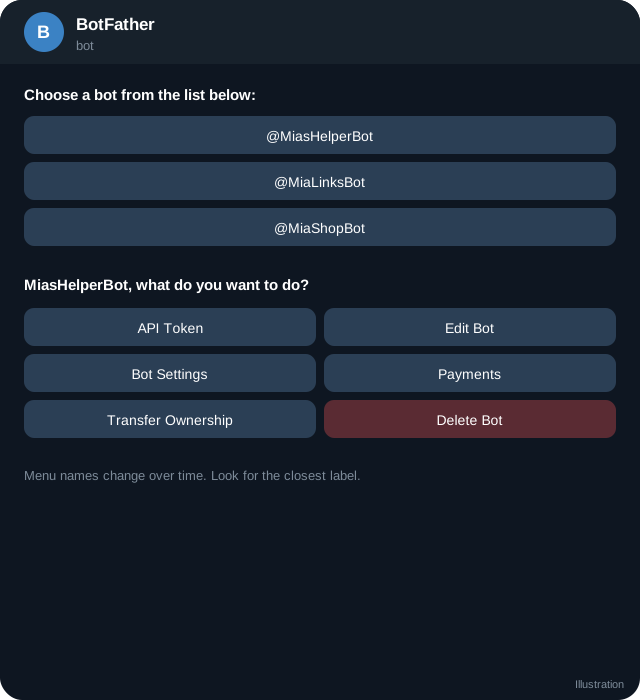
In BotFather
/setnamefor the display name./setuserpicfor the photo (upload a square image)./setdescriptionfor the longer description./setabouttextfor the short About text./setdescriptionpicfor the picture on the empty chat screen./setcommandsfor the menu list.
Choose the bot, then follow the prompts. See BotFather commands.
Through the Bot API
These methods exist in the Bot API. Check their current signatures in the documentation.
setMyName              { name, language_code? }
setMyDescription       { description, language_code? }
setMyShortDescription  { short_description, language_code? }
setMyCommands          { commands: [{command, description}], scope?, language_code? }
getMyCommands, deleteMyCommands, getMyName, getMyDescription, getMyShortDescription
An example call:
{
  "commands": [
    { "command": "start", "description": "Welcome" },
    { "command": "links", "description": "My links" },
    { "command": "help", "description": "How this bot works" }
  ]
}
Rules to remember: command names use lowercase letters, digits and underscores, are limited in length, and the description is short. The documentation lists the exact limits.
Languages and scopes
Both descriptions and commands accept a language_code.  Telegram shows the version that matches the user's language and falls back to the default. This is helpful for international audiences. Commands also have scopes: you can show different menus in private chats, in groups and to group admins. Use
scope for that, for example {"type":"all_private_chats"}.
Writing good text
Description (up to 512 characters):
- First line: what the bot does in plain words.
- Second: who it is for.
- Third: how to start.
- Mention 18+ where relevant.
Example: "Get my links, ask a question or see what is new. Made by Mia for her followers. Tap Start to begin. 18+ only."
Short description (up to 120 characters): a single clear line. It also appears in some search and share previews.
Commands: short verbs in plain language. Avoid more than six or seven.
Photo: a simple, high contrast image that reads at a small size. A face or logo works well. Keep it safe for work, since the picture is public.
Limits can change, so check the documentation if text is rejected.
Keep it honest
- Say that it is a bot.
- Do not copy another brand's name or picture.
- Do not claim features the bot does not have.
- If AI writes replies, say so somewhere visible. See AI disclosure.
Consistency with your brand
Use the same name, colours and tone as your channel and website. See branding and domains.
Checklist
- Name, username and photo set.
- Description and short description written and proofread.
- Commands registered, tested and sensible.
- Language variants added if needed.
- Profile checked from a second account.
Quick checklist
- Name, username and a legible profile photo set.
- Description under 512 characters that says what the bot does and for whom.
- Short description under 120 characters.
- Commands registered with short plain descriptions.
- Language variants added where your audience needs them.
- Command scopes set if groups need a different menu.
- Everything checked from a second account.
- Public text is safe for work and says it is a bot.
Keep it current
Your bot profile is a shop window, so review it whenever features change. Remove commands that no longer work, update links and check that the description still matches what the bot does. An out of date menu is one of the quickest ways to lose a new user's trust.
Frequently asked questions
Why does my description not show?
It appears on the empty chat screen before the first message. Users who already chatted will not see it again.
Why did my new commands not appear?
Telegram caches menus. Restart the app or reopen the chat. Check scope and language settings.
Can I use emoji?
Yes in descriptions, but use sparingly. Command names themselves must follow the allowed characters.
Can I change the username later?
It is restricted and breaks old links. Choose carefully.
Related guides
BotFather Commands: What Each One Does
A reference to BotFather, Telegram's tool for creating and managing bots: the main commands, settings menus, what they change and what to watch out for.
Telegram Bot Commands, Menus and Onboarding Flows
Design a bot that new fans can use in seconds: start message, command list, inline buttons, menus, language, error handling and a human fallback.
Create a Telegram Bot Step by Step (With a Working Reply)
From zero to a bot that answers /start: make it in BotFather, test the token with getMe, send your first message and choose polling or a webhook.
Telegram Bot API Basics: Methods, Updates and Responses
How the Telegram Bot API works: URL format, JSON responses, update objects, common methods, parse modes, keyboards and how to read errors.
Branding and Domains for Your Own Telegram Mini App
How to brand a Telegram Mini App and bot: names, usernames, logo, colours, themes, your own domain, HTTPS, email and search visibility, with a checklist.
A Telegram Webhook on AWS Lambda or a Small Server
Two ways to receive Telegram updates: an AWS Lambda function URL and a tiny Node server behind HTTPS, with secret token checks, fast replies and queues.
More in Build on Telegram
- Add a Bot as Channel Admin and Post to Your Channel
- Bot Privacy Mode and Group Admin Rights Explained
- Common Telegram Bot Errors and How to Fix Them
- Connect a Bot to Your Telegram Business Account (Chatbot Mode)
All topics: Build on Telegram · Guide index · Explore Telegram · About TSocial