
Add a Bot as Channel Admin and Post to Your Channel
· 4 min read · 18+ readers

A bot can publish to a channel for you: scheduled posts, content from a feed, announcements from a website. To do that it must be an administrator with permission to post. This guide shows how to add the bot, find the channel id, send a post and fix the usual errors. Check the Bot API reference for current method parameters.
Step 1: Add the bot as an admin
- Open your channel and tap its name.
- Tap Administrators, then Add Administrator.
- Search for your bot by username and select it.
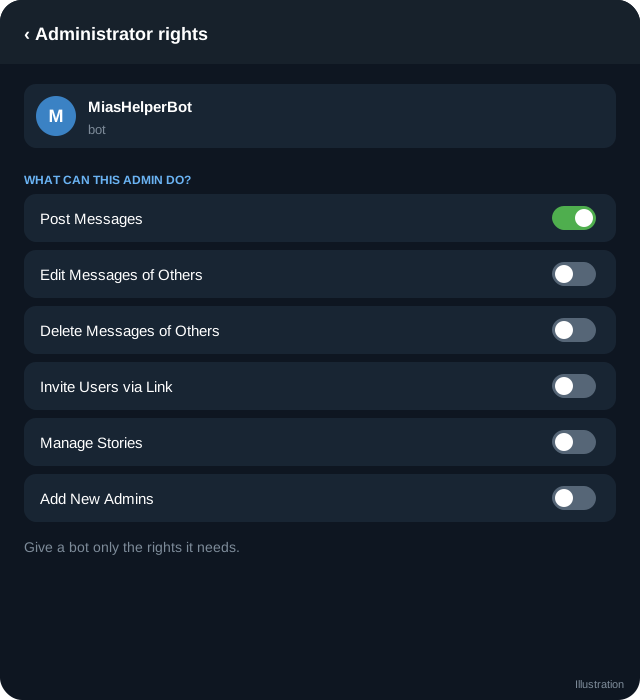
- Turn on the rights it needs. For posting, enable Post Messages. Add Edit Messages and Delete Messages only if the bot will edit or remove posts.
- Save.
You can also use a link: https://t.me/yourbot?startchannel&admin=post_messages. It opens a screen that lets the user choose a channel and approve the rights. See deep links.
Only channel owners and admins with the right to add admins can do this. A bot cannot add itself.
Step 2: Choose the chat id
For a public channel use the username, with the at sign:
{ "chat_id": "@mychannel", "text": "Hello channel" }For a private channel use the numeric id, which starts with -100. To find it:
- Add the bot as an admin.
- Post any message in the channel.
- If your bot gets updates, look at the
channel_postupdate and readchat.id.
You can also call getChat with a username to get the id of a public channel. See getting a username.
Step 3: Send a post
curl -X POST "https://api.telegram.org/bot$BOT_TOKEN/sendMessage" \
  -H "content-type: application/json" \
  -d '{"chat_id":"@mychannel","text":"<b>New guide</b>\nRead it here: https://example.com","parse_mode":"HTML","disable_notification":true}'
Useful options:
disable_notification: sends silently. See how often to post.protect_content: stops forwarding and saving of that message.link_preview_options: control link previews.reply_markup: inline buttons under the post. In a channel these can be URL buttons.
Photos, videos, albums (sendMediaGroup) and polls (sendPoll) work the same way. For paid posts see paid media.
Editing and deleting
Use editMessageText, editMessageCaption or deleteMessage with the chat_id and message_id returned when you posted. Store the id.
Scheduling
The Bot API does not offer a scheduling parameter for normal channel posts. Do it on your side: keep a table of posts with a publish time, run a job every minute and send what is due. Make it idempotent so a retry does not double post. Humans can also use  Telegram's own scheduled messages inside the app.
Reading channel posts
If the bot is an admin it receives channel_post updates for new posts in the channel, including posts made by humans. Use that to log or cross-post. Include channel_post in allowed_updates if you filter.
Comments
If the channel has a linked discussion group, comments live in that group. Add the bot to the group, not the channel, to moderate them. See comments and discussion groups.
Common errors
| Error | Cause and fix |
|---|---|
chat not found | Wrong id or username, or the bot is not in the chat |
Forbidden: bot is not a member of the channel chat | Add the bot as admin |
not enough rights to send text messages to the chat | Enable Post Messages |
can't parse entities | Escape HTML or MarkdownV2 properly |
message is too long | Keep text under 4096 characters |
Safety
- Give the bot only the rights it needs.
- Keep the token safe. Anyone with it can post as your channel. See keeping your token safe.
- Do not let untrusted input flow straight into posts.
- Keep an admin account that can remove the bot quickly.
Quick checklist
- The bot is an admin with Post Messages enabled.
- chat_id uses @username or the -100 numeric id.
- Posts use HTML formatting that is properly escaped.
- disable_notification is used for lower priority posts.
- Message ids are stored so posts can be edited or removed.
- Scheduling is done on your side with a queue.
- The token is stored securely.
- A human admin can remove the bot at any time.
Editorial control
Automated posting is useful, but keep a person in charge of what goes out. Review feeds before they publish, add a pause switch and keep a log of every post. A bot that publishes the wrong thing to a large audience is hard to take back.
Frequently asked questions
Can a bot post as a person?
It posts as the channel or as the bot name, depending on settings. It does not post as you.
Can a bot add subscribers?
No. People must join themselves.
How many posts can I send?
Telegram applies rate limits. See rate limits and flood control.
Does the bot see subscribers?
Not the list. Telegram gives bots limited information about members.
Related guides
Get a Username for Your Telegram Channel or Group
How to make a channel or group public with a t.me username: steps, naming rules, what changes, changing it later and what to do if the name is taken.
Bot Privacy Mode and Group Admin Rights Explained
What a bot can see in groups: privacy mode on and off, admin rights, allowed_updates, mentions and commands, and how to test and change them safely.
Send Paid Media with the Telegram Bot API
Developer guide to sendPaidMedia: InputPaidMedia types, star_count, payload, captions, channels versus chats, purchased_paid_media updates and limits to check.
Telegram Deep Links and Start Parameters
All the t.me link formats creators and developers need: start, startgroup, startchannel, startapp, usernames, invites and how to use payloads to track sources.
How Often Should You Post on a Telegram Channel?
Find a posting rhythm that fits your audience and energy: frequency, timing, batching, silent notifications and what to do when you cannot post.
A Telegram Webhook on AWS Lambda or a Small Server
Two ways to receive Telegram updates: an AWS Lambda function URL and a tiny Node server behind HTTPS, with secret token checks, fast replies and queues.
More in Build on Telegram
- BotFather Commands: What Each One Does
- Common Telegram Bot Errors and How to Fix Them
- Connect a Bot to Your Telegram Business Account (Chatbot Mode)
- Connect Your Backend to a Telegram Bot: A Practical Architecture
All topics: Build on Telegram · Guide index · Explore Telegram · About TSocial