
Telegram Stars Payments in a Bot: Invoice to Refund
· 4 min read · 18+ readers

 Telegram Stars let a bot sell digital goods and services without a payment provider. The flow has four steps: send an invoice, approve the checkout, record the payment and deliver. This guide shows each step with short examples and covers refunds. Always check core.telegram.org/bots/payments-stars and the Bot API reference for the current rules and field limits, and read Telegram's terms about what may be sold with Stars.
What you can sell
Digital goods and services used inside Telegram, such as access to a channel, a digital download or an extra feature. Physical goods follow a different payment system. Telegram's terms limit certain content, and the rules are enforced. See what creators can sell.
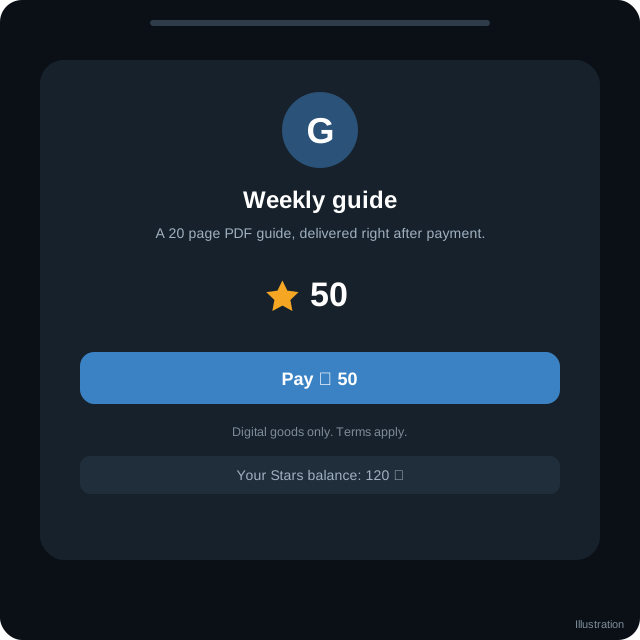
Step 1: Send an invoice
Use sendInvoice with currency XTR. For Stars, provider_token is empty or omitted, and prices must contain exactly one item.
{
  "chat_id": 123456789,
  "title": "Weekly guide",
  "description": "A 20 page PDF guide, delivered right after payment.",
  "payload": "order_8841",
  "currency": "XTR",
  "prices": [ { "label": "Guide", "amount": 50 } ]
}amountis a whole number of Stars.payloadis a string up to 128 bytes that only you see. Use it to identify the order.- The invoice message shows a Pay button.
Check the documentation for optional fields such as photos. For Mini Apps and links, use createInvoiceLink and open the result with Telegram.WebApp.openInvoice(url, callback).
Step 2: Answer the pre-checkout query
Before charging, Telegram sends a pre_checkout_query update. You must answer within about 10 seconds with answerPreCheckoutQuery:
{ "pre_checkout_query_id": "<id from the update>", "ok": true }Use this moment to check that the order is valid and still in stock. To refuse, send "ok": false and an error_message that the user will see.
Step 3: Receive successful_payment
After the payment, a message update arrives with a successful_payment field:
{
  "message": {
    "from": { "id": 123456789 },
    "successful_payment": {
      "currency": "XTR",
      "total_amount": 50,
      "invoice_payload": "order_8841",
      "telegram_payment_charge_id": "abc...",
      "provider_payment_charge_id": "..."
    }
  }
}
Save the telegram_payment_charge_id with the order. You need it for refunds and for your records. Make this step idempotent: if the update arrives twice, do not deliver twice. See webhook retries.
Step 4: Deliver
Send the file or grant access, then confirm in chat. Do it only after you have recorded successful_payment. If delivery fails, log it and retry, because the user has already paid.
Refunds
Call refundStarPayment with the buyer's user id and the charge id:
{ "user_id": 123456789, "telegram_payment_charge_id": "abc..." }On success, the Stars go back to the buyer. Write a refund policy and tell buyers how to ask. See refunds and disputes. Telegram's terms also require that you provide support for purchases, so make a contact available, for example a /support command, and mention it in your bot's description.
Seeing transactions
The Bot API has getStarTransactions to list Star transactions for the bot. Use it to reconcile your own records. Check the documentation for pagination and fields.
Testing
Use a second account to buy a very small amount. Telegram also has a test environment for some features. Read the documentation before you rely on it for payments. Test failure cases: closing the invoice, a slow pre-checkout answer and a duplicate update.
Security and good practice
- Never trust the client to say a payment happened. Rely on
successful_paymentfrom Telegram. - Keep the
payloadfree of secrets. - Verify the amount and currency in
successful_paymentagainst the order. - Handle each charge id once.
- Keep accounting records for tax. See record keeping.
- Make the purchase flow clear, with the price and what is included.
Quick checklist
- Invoice uses currency XTR with a single price item.
- Payload identifies the order and contains no secrets.
- pre_checkout_query is answered within about 10 seconds.
- successful_payment is recorded with telegram_payment_charge_id.
- Delivery happens once, even if the update repeats.
- A refund path with refundStarPayment is tested.
- Support contact and refund policy are visible.
- Records are kept for accounting and tax.
Edge cases to test
Test what happens when a buyer closes the invoice, pays twice, pays while out of stock, or asks for a refund after delivery. Decide in advance what each case should do and write the answer into your policy. Payment code should be the most carefully tested part of your bot, because mistakes here cost real money and trust.
Frequently asked questions
Do I need a payment provider?
Not for Stars. Other currencies need a provider and its token.
Can I charge more than one item at once?
For Stars invoices, prices holds one item. Use one invoice per product or bundle.
How do I get paid?
Earnings accumulate as Stars subject to Telegram's payout rules. See Stars payouts.
What if the user never completes payment?
Nothing is charged and you receive no successful_payment. Do not deliver.
Related guides

Send Paid Media with the Telegram Bot API
Developer guide to sendPaidMedia: InputPaidMedia types, star_count, payload, captions, channels versus chats, purchased_paid_media updates and limits to check.

Telegram Stars for Creators: The Complete Guide
How creators use Telegram Stars: what they are, ways to earn with bots, paid media and subscriptions, fees to check, payouts and mistakes to avoid.
Refunds, Complaints and Disputes for Telegram Sellers
How to handle refund requests and complaints when selling on Telegram: clear policies, delivery proof, communication and when to escalate.

Connect Your Backend to a Telegram Bot: A Practical Architecture
How to wire a bot to your own backend: receiving updates, mapping Telegram users to accounts, queues, database design, idempotency and safe deploys.
Create a Telegram Mini App and Register It in BotFather
Build a minimal Telegram Mini App page, include the Telegram Web App script, host it on HTTPS and register it in BotFather with a menu button or /newapp.
A Telegram Webhook on AWS Lambda or a Small Server
Two ways to receive Telegram updates: an AWS Lambda function URL and a tiny Node server behind HTTPS, with secret token checks, fast replies and queues.
More in Build on Telegram
- Add a Bot as Channel Admin and Post to Your Channel
- Bot Privacy Mode and Group Admin Rights Explained
- BotFather Commands: What Each One Does
- Common Telegram Bot Errors and How to Fix Them
All topics: Build on Telegram · Guide index · Explore Telegram · About TSocial