
Mini App Menu Button, Direct Links and the startapp Parameter
· 4 min read · 18+ readers

A Mini App can start in several ways, and each one tells your app slightly different things. Knowing the options lets you open the app on exactly the right screen from a channel post, a bio link or a chat. This guide describes the launch methods and how to pass data with the startapp parameter. Confirm details in the official Mini Apps documentation, since options are added over time.
Launch methods
1. The menu button
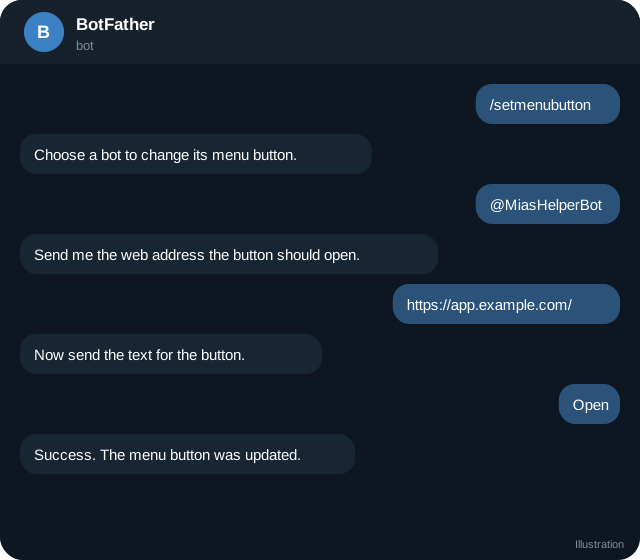
The button beside the message box in a chat with your bot. Set it in BotFather with /setmenubutton, or from code with setChatMenuButton:
{ "menu_button": { "type": "web_app", "text": "Open", "web_app": { "url": "https://app.example.com/" } } }Pass chat_id to set it for one user, or leave it out for the default. Apps opened this way get the user data in initData, and they can send data back to the bot only through certain features.
2. Inline keyboard button
A button under a message, with web_app:
{ "inline_keyboard": [[ { "text": "Open", "web_app": { "url": "https://app.example.com/page" } } ]] }Different URLs can open different pages.
3. Reply keyboard button
A keyboard button with web_app sends data from the app back to the bot using Telegram.WebApp.sendData, and then the app closes. This suits simple forms.
4. Direct link to a named Mini App
After creating an app with /newapp, the link is:
https://t.me/<bot_username>/<app_short_name>You can share it anywhere: in a channel, a bio or a website.  Telegram shows a preview with the app's title and photo.
5. Main Mini App link
If you configure a Main Mini App for the bot in BotFather, a link such as https://t.me/<bot_username>?startapp opens it, and the profile of the bot shows an Open button. The documentation describes a mode query parameter, such as compact, for how it opens. Check the current values before you rely on them.
6. Other places
Inline mode results, the attachment menu and links within other apps can launch Mini Apps too. These need extra setup. See the documentation.
The startapp parameter
Add ?startapp=VALUE to a direct link:
https://t.me/yourbot/shop?startapp=product_42Inside the app, read it from:
const param = Telegram.WebApp.initDataUnsafe.start_param; // "product_42"The same value is also in the signed initData string as start_param, so your server can read it after validation. See validating initData.
Rules for the value:
- Up to 64 characters.
- Only letters, digits, underscore and hyphen are allowed. Encode anything else, for example with base64url.
- It is visible to the user, so never put secrets in it.
- Treat it as untrusted input: validate and look it up in your database. Do not assume it is yours.
Example scheme: post_123, ref_abc, topic_growth. Then route inside your app:
const p = Telegram.WebApp.initDataUnsafe.start_param ?? "";
if (p.startsWith("post_")) openPost(p.slice(5));
else if (p.startsWith("ref_")) saveReferral(p.slice(4));
Menu button vs direct link
| Need | Use |
|---|---|
| An always visible entry in the bot chat | Menu button |
| A link to share on a website or channel | Direct link |
| Open a specific screen | startapp |
| Send one form result to the bot | Reply keyboard web_app |
| Return to the chat after finishing | tg.close() |
Fullscreen and other options
Telegram has added options such as fullscreen mode and bottom bar controls in newer versions. Check Telegram.WebApp.version and isVersionAtLeast before you call new methods, and give older apps a graceful fallback.
Tracking sources
Because startapp can carry a tag, you can measure where visitors came from: src_ig, src_tiktok, src_email. Save the tag when the user first opens the app, and count it in your analytics. See deep links and start parameters.
Troubleshooting
- Parameter missing: you opened the app through a path that does not pass it, such as the menu button. Use the direct link.
- Characters rejected: encode the value to the allowed set.
- Link opens the bot chat, not the app: the app short name is wrong or the app was deleted.
Quick checklist
- Menu button set in BotFather or with setChatMenuButton.
- A direct link created with /newapp for sharing.
- startapp values use only allowed characters and stay under 64 characters.
- The app reads start_param and routes safely.
- Server side checks read start_param from validated initData.
- Source tags are saved on first open.
- Links are tested from a channel, a bio and a chat.
- Fallbacks exist for older Telegram versions.
Document your routes
Keep a list of the startapp values your app understands and what each opens. When marketing wants a new link, they can pick from the list, and developers do not need to guess what old links mean.
Frequently asked questions
Can the parameter change after launch?
No. It is fixed for that launch. Reopen with a new link to change it.
Is the parameter secure?
No. Anyone can edit a link. Validate on your server.
How do I open a link from a website?
Use the direct link. It opens Telegram if installed, or the web version.
Do I need both a menu button and a direct link?
Many bots use both: the menu button for convenience and direct links for sharing.
Related guides
Create a Telegram Mini App and Register It in BotFather
Build a minimal Telegram Mini App page, include the Telegram Web App script, host it on HTTPS and register it in BotFather with a menu button or /newapp.
Telegram Deep Links and Start Parameters
All the t.me link formats creators and developers need: start, startgroup, startchannel, startapp, usernames, invites and how to use payloads to track sources.
Validate Telegram Mini App initData on Your Server
Why initData must be verified, how the HMAC check works step by step, a Node.js example, auth_date freshness and common mistakes.
BotFather Commands: What Each One Does
A reference to BotFather, Telegram's tool for creating and managing bots: the main commands, settings menus, what they change and what to watch out for.
Telegram Mini Apps for Creators: What They Can Do
How creators can use Telegram Mini Apps: link pages, shops, member areas, games and tools. Includes launch options, Stars, design and safety tips.
A Telegram Webhook on AWS Lambda or a Small Server
Two ways to receive Telegram updates: an AWS Lambda function URL and a tiny Node server behind HTTPS, with secret token checks, fast replies and queues.
More in Build on Telegram
- Add a Bot as Channel Admin and Post to Your Channel
- Bot Privacy Mode and Group Admin Rights Explained
- Common Telegram Bot Errors and How to Fix Them
- Connect a Bot to Your Telegram Business Account (Chatbot Mode)
All topics: Build on Telegram · Guide index · Explore Telegram · About TSocial